Practical guide · PDF revisions · iPhone & iPad
One date changed. Would you catch it before signing?
You receive a revised contract and the filename looks almost identical to the original. The new version changes a delivery date by one week. Can you spot the difference before you approve or sign?
Comparing PDF files means more than putting two documents side by side. The important question is what actually changed, where it changed, and whether the change is acceptable. DocMate helps inspect changes between original and revised PDFs on iPhone and iPad; you still decide what those changes mean.
The example: 30 October became 6 November
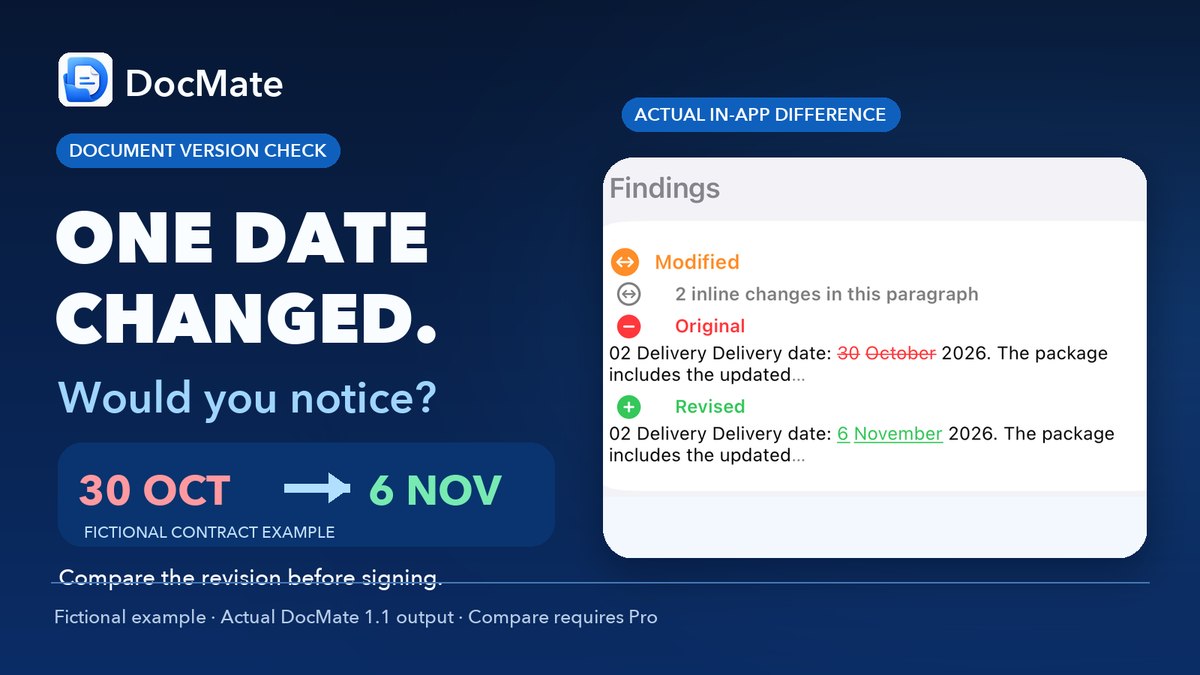
In our reproducible test, Document A contains a planned delivery date of 30 October 2026. Document B, the revision, changes that date to 6 November 2026. DocMate reports the paragraph as modified and shows the original and revised text for inspection.
These are fictional test documents, not anyone's contract or private information. The highlighted text is an actual result from the shipping app, not a fabricated screenshot or a claim that every possible change will always be detected.
How to check a revised PDF before signing
-
Preserve both PDF versions
Keep a copy of the original PDF and the revised PDF. Give them distinct names so you do not mistake the revised file for the approved version.
-
Check the comparison direction
In DocMate Compare, select the original as Document A and the revision as Document B. Confirm these labels before interpreting the result.
-
Run Compare and open each finding
Inspect the changes reported by the app. The fictional service agreement illustrated here changes a delivery date from 30 October 2026 to 6 November 2026.
-
Read both passages in context
Review the surrounding wording in the original and revised PDFs. A highlighted difference is evidence of a changed passage, not a judgement that the change is safe or acceptable.
-
Review, then sign the intended version
After your own review and approval, use the app workflow to sign the intended PDF. Keep the original and signed output distinguishable and verify the saved result.
What else should you check manually?
A changed date is only one example. Depending on the document, look for changes to the following terms as well. Do not assume automated comparison will find every consequential difference:
- Payment amounts, taxes, fees and due dates.
- Names, company details, addresses and account references.
- Delivery obligations, deadlines and cancellation terms.
- Removed paragraphs, inserted conditions and missing attachments.
- Signature blocks and the version actually being signed.
Try the comparison workflow
Start with a fictional or cleared document. Check the original/revised direction, inspect every finding and verify your saved output. You can explore the rest of the workflow in DocMate for iPhone and iPad.
View on the App Store